To be able to start ingenious.WEB, you have to enter in the program setting in the category “Web-Server” the IP of the computer, which will provide the service, and click on the button “Start web server”.
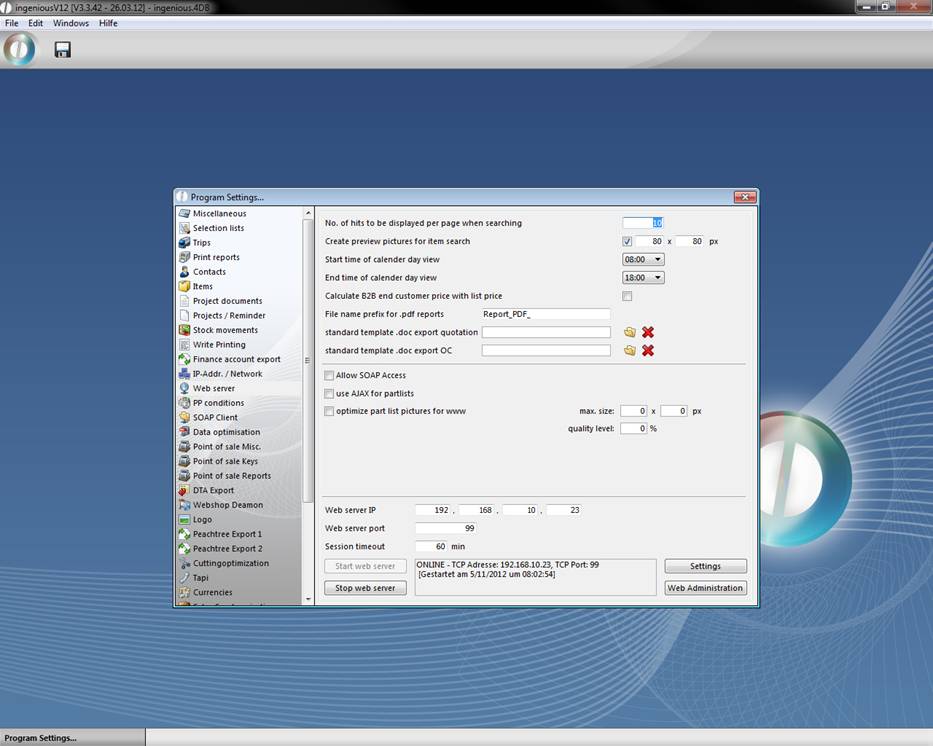
When you click the button “Web Administration” a window will open up, where you find all necessary templates for ingenious.WEB.
In the 4D client directory of the computer, which operates as the web server, the folder “WebFolder” has to be located. It contains the picture folder “images”, and necessary script and stylesheet files.
By clicking “Start web server” and “Stop web server” you can control the web server, when the following requirements are fulfilled:
- Module right “XML Supplier module” or “Web Access” available
- IP-address of the computer corresponds to the one entered in “Web Server IP”
When you click on “Web Administration” you reach the configuration for the html system sites. The following sites have to be created containing content:
Folder Sales rep Module (Modul Aussendienst)
“calendardetailnew”
“calendarmain”
“calendarmont”"
“calendarweek”
“genericerror”
“kundendetail”
“kundenmain”
“login”
“reporterror”
“reportmain”
“reportmain_pdf”
Folder “General B2B” (Allgemein B2B)
“B2B_ItemConfig”
“B2B_Login”
“B2B_Main”
“B2B_noLogin”
“B2B_ProjectDetail”
“B2B_ProjectList”
“B2B_segment_article_menu”
“B2B_segment_header1”
“B2B_segment_header2”
“B2B_segment_left_menu”
To call up the web sites, in the browser the IP address resp. domain/URL has to be entered, followed by the corresponding start site:
Web Access for sales rep employees: [Your IP address]/?webform=login
Web Access for mobile devices: [Your IP address]/?webform=login&mobil=true
Web shop B2C: [Your IP address]/b2c/
Web shop B2B: [Your IP address]/b2b/